
Overview
The Pucho Platform Admin is the central panel for managing your instance. It’s designed for SaaS providers, enterprise teams, or partner organizations that use Pucho to orchestrate automations, manage users, and control platform operations.
With the Platform Admin, you can do:
- Project Management: Manage all projects within your organization — create, edit, or delete projects as your automation landscape evolves.
- Piece Management: Gain complete control over automation pieces available in your instance. Show, hide, or add custom pieces to tailor automation capabilities to your organizational workflows.
- User Authentication Management: Add or remove users, assign roles, and control access permissions using secure role-based access controls (RBAC).
- Template Management: Manage prebuilt templates or design your own templates to streamline automation setup and maintain consistency across teams.
- AI Provider Management: Configure and manage AI providers available within your workspace, defining which providers are accessible in your flows.
Agents
Automate complex tasks intelligently with AI Agents.
What are AI Agents?
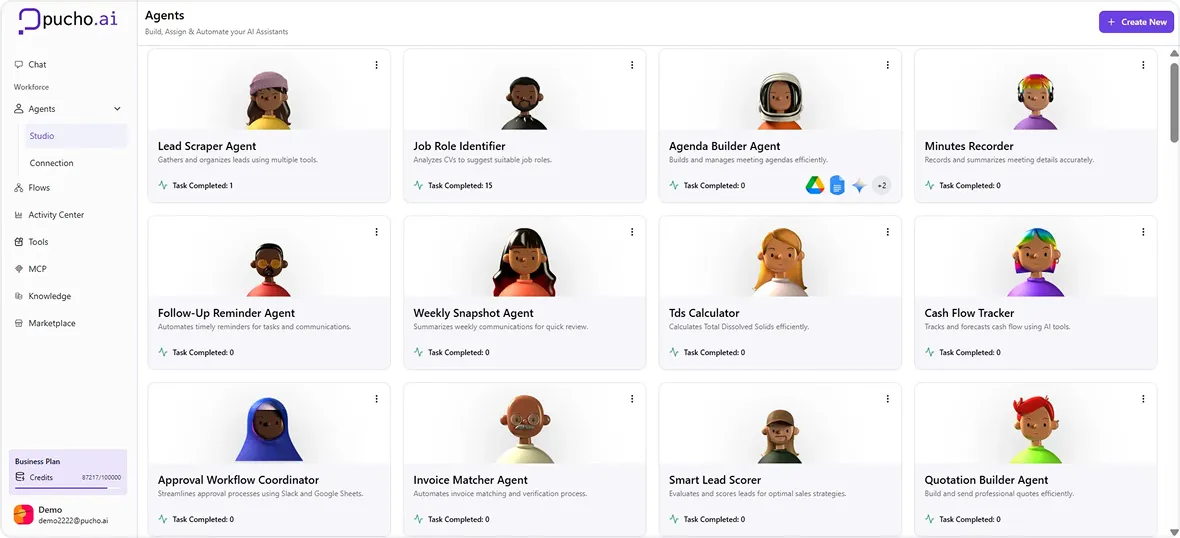
AI Agents in Pucho are intelligent, reasoning-based bots powered by large language models (LLMs). They autonomously plan and execute tasks by leveraging connected tools and contextual knowledge. Each agent operates with a defined goal and dynamically decides how to use available tools to complete that goal efficiently.
What can they do?
Operate in specific roles
AI Agents can be configured for domain-specific functions such as marketing, sales, operations, HR, or support. Each agent can be trained to understand workflows, industry language, and priorities for its assigned role.
Plan and execute tasks
When given an objective, agents analyze the context, determine the best approach, and execute multi-step plans. They can break down complex tasks into smaller goals, prioritize actions, and complete workflows independently.
Make autonomous decisions
Agents can adapt to changes, make data-driven decisions, and handle exceptions in real time. When a process encounters unexpected conditions, agents evaluate alternatives and adjust their strategies to ensure completion — much like a skilled human operator.
Use connected tools
Pucho Agents can use any tool connected to your workspace — such as CRM systems, spreadsheets, APIs, or communication apps. They intelligently choose and apply these tools to perform actions like retrieving data, sending updates, or generating reports.
Integrate seamlessly with existing systems
Agents integrate directly into your organization’s workflows and existing software. They operate alongside your team, following defined business logic and automating actions across multiple systems.
How AI Agents Work
AI Agents in Pucho are intelligent, reasoning-based bots powered by large language models (LLMs). They autonomously plan and execute tasks by leveraging connected tools and contextual knowledge. Each agent operates with a defined goal and dynamically decides how to use available tools to complete that goal efficiently.
Pucho Agents can function in multiple modes based on your requirements:
- Autonomous Mode: Agents independently execute tasks end-to-end without human intervention.
- Human-in-the-Loop Mode: Agents request approval or input from team members at defined checkpoints before proceeding.
You can trigger agents in several ways:
- Prebuilt Integrations: Connect agents directly with your preferred business tools or data sources.
- API Access: Use API endpoints to start and manage agents programmatically from your own applications.
- Pucho Interface: Launch and monitor agents directly within the Pucho platform UI.
Flows
Design and automate custom workflows using tools and agents.
What are Flows?
Flows in Pucho are custom workflows that let you automate multi-step processes — from simple tasks like sending notifications to complex, AI-driven operations involving reasoning and decision-making.
You can build flows visually using tools, connect them to agents for intelligent automation, and integrate data from multiple systems — all without writing code.
How do Flows work?
Build with Tools:
Each Flow is made up of one or more Tools, connected in a logical sequence. These tools define what each step in the process does — like fetching data from a CRM, generating a summary using an LLM, or updating a record in a database.
Integrate with Agents:
You can assign AI Agents to your Flows to handle reasoning, interpretation, or decision-making within the workflow. Agents analyze inputs, select appropriate tools, and execute the right actions automatically.
Trigger and Automate:
Flows can be triggered manually, scheduled, or activated by specific events such as receiving a form submission, updating a record, or getting a new email.
Connect to External Systems:
Easily integrate APIs, databases, or third-party platforms like Google Sheets, Notion, Slack, or your internal systems. This allows Flows to move data between your business apps without manual work.

Example Use Cases:
Customer Support Automation:
When a new support ticket is received, an AI Agent summarizes the issue, classifies the category, and updates the CRM while notifying the relevant team via Slack.
Lead Qualification Flow:
Fetch leads from Google Sheets, analyze their messages using a sentiment analysis tool, and auto-route high-priority leads to the sales agent for personalized outreach.
Invoice Processing:
Extract invoice data from uploaded PDFs, validate totals against your finance database, and update payment status in your accounting system — all handled by a Flow.
Content Workflow:
An agent takes your uploaded draft, refines it through an LLM tool, generates SEO tags using another tool, and publishes the final post through a connected CMS like WordPress.
Why use Flows in Pucho?
Flows turn your manual, repetitive processes into intelligent, end-to-end automations. They bring together:
- AI reasoning from Agents
- Logic and structure from Tools
- Flexibility to connect any business system
With Flows, your operations evolve from task execution to autonomous orchestration, saving time, reducing errors, and creating room for creativity and scale.
Activity Center
Track and monitor your flow runs, performance, and errors — all in one place.
What is the Activity Center?
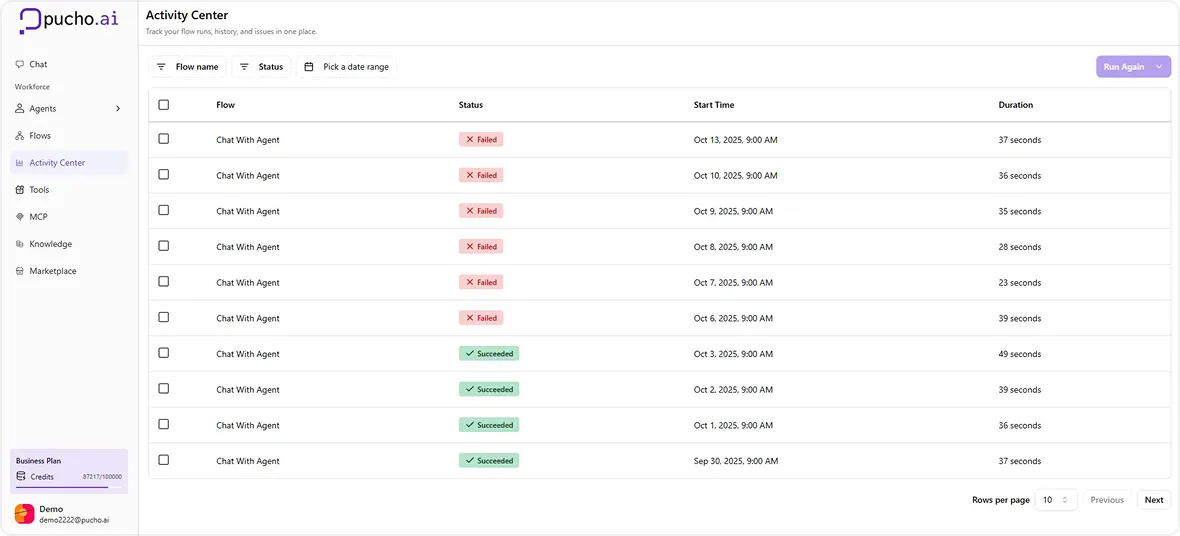
The Activity Center in Pucho is your central dashboard for tracking every automation and action performed across your Flows and Agents. It provides a real-time view of executions, status updates, and detailed logs — helping you understand what’s running, what succeeded, and where an error occurred.
What you can do in the Activity Center:
Monitor Flow Runs:
View all active and completed Flow runs, including start time, duration, and status. Each entry gives you visibility into how your automation is performing.
View Execution History:
Access a complete historical record of previous runs for auditing or optimization. You can review data processed, steps executed, and agent decisions for each run.
Error Tracking:
Instantly identify failed runs or errors in execution. Detailed error messages and step-by-step logs help you pinpoint issues quickly — whether they’re API failures, missing inputs, or configuration mismatches.
Retry or Debug:
Failed runs can be retried directly from the Activity Center after fixing the cause. You can also debug issues by inspecting the flow’s input/output data and tool behavior.
Agent Insights:
When an AI Agent is part of a flow, the Activity Center provides reasoning traces — showing how the agent interpreted context, selected tools, and made decisions during execution.
Example Use Cases:
Example Use Cases:
Keep track of hundreds of scheduled automations — such as daily reports, CRM syncs, or marketing updates — to ensure everything runs smoothly.
Debugging Workflows:
If a data sync or API call fails, view the detailed logs to identify whether the issue came from the input, output, or tool logic.
Performance Optimization:
Analyze recurring flow runs to identify slow steps or redundant actions, then refine your tools and triggers for better performance.
Why it matters:
The Activity Center ensures your automations are transparent,
traceable, and reliable.
It gives you full control over how Flows and Agents perform — turning automation monitoring into a simple, visual, and data-driven process.
Tools
Empower your agents with powerful tools to complete tasks seamlessly.
What are Tools?
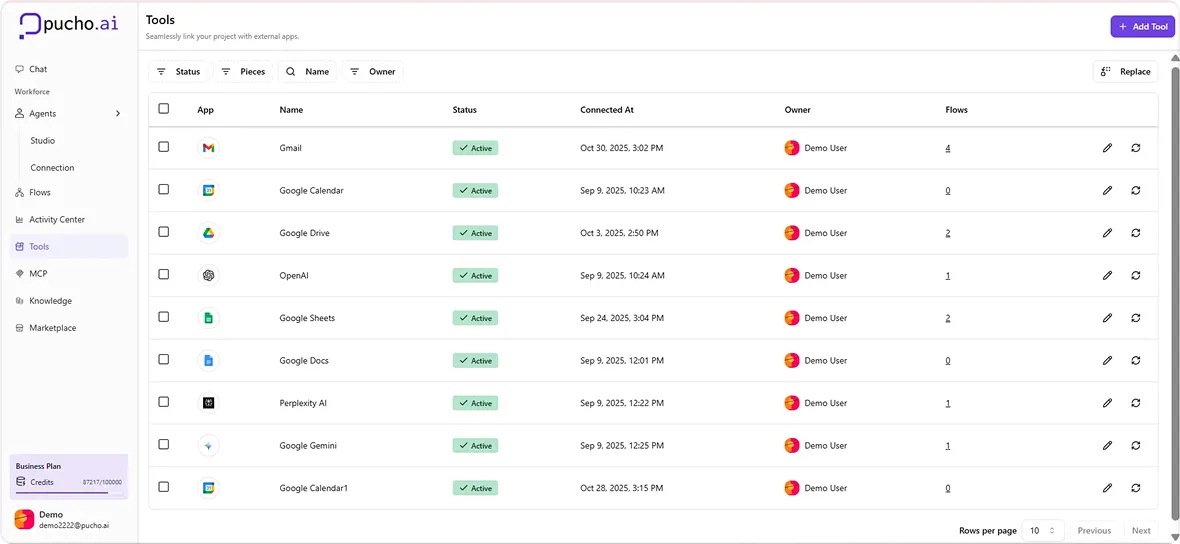
In Pucho, Tools are modular automation components that define how agents interact with data, APIs, and workflows. They form the backbone of task execution — allowing you to connect external systems, process information, or chain logic into advanced automations.
Tools can be built through Pucho’s intuitive no-code interface and can be:
- Shared as interactive forms
- Executed in bulk across datasets
- Assigned to agents to extend their capabilities
You can integrate with virtually any API, select from an existing library of prebuilt actions, or even embed custom logic to tailor automation flows to your exact business needs.
Connected Tools
How Tools Work
Receive Inputs
Each tool begins by receiving inputs — structured data such as text, numbers, or files. Inputs can come from users, connected systems, or outputs of other tools and agents.
Chain Together Steps
Tools are made up of sequential steps, each performing a defined operation like sending an API request, running an LLM prompt, or executing conditional logic. Steps can reference outputs from previous actions, allowing for dynamic, multi-stage workflows.
Generate Outputs
Once all steps are executed, the tool produces outputs that can take the form of text, structured data, links, or formatted responses. These outputs can be displayed in the platform, stored in databases, or passed to other agents and tools for further processing.
With Pucho Tools, teams can easily design powerful, context-aware automations that bridge human input, AI reasoning, and connected systems — all without writing a single line of code.
MCP
Empower your agents with powerful tools to complete tasks seamlessly.
What is MCP?
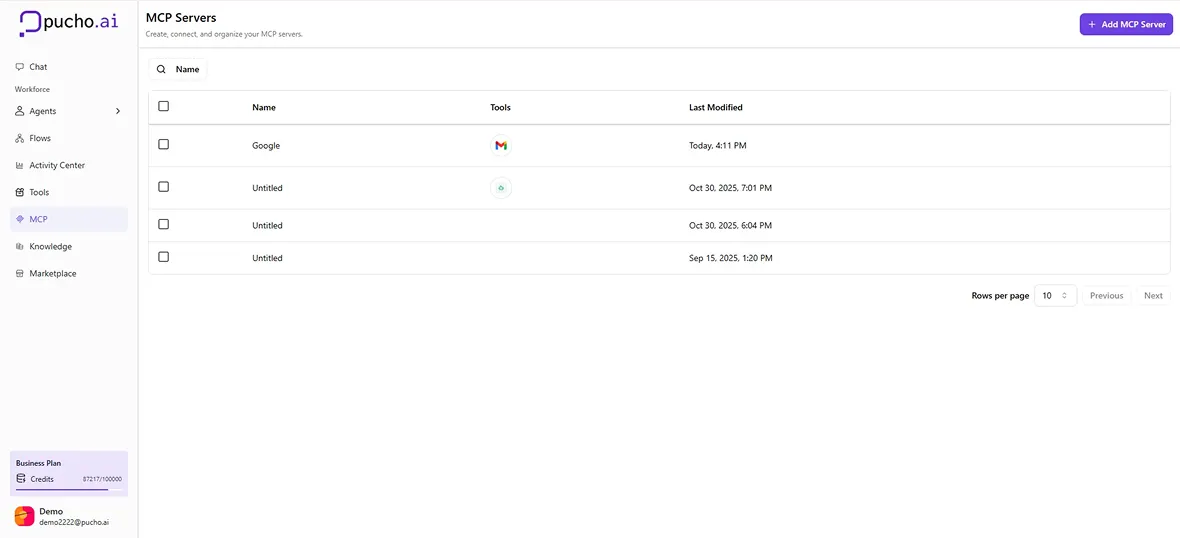
The Model Context Protocol (MCP) is Pucho’s bridge between LLMs (Large Language Models) and external tools or data sources.
It allows your AI Agents and Flows to interact with multiple systems — such as APIs, databases, CRMs, or dashboards — through a secure, standardized interface.
With MCP, your automations become smarter and more capable by allowing models to fetch real-time context, trigger actions, and respond dynamically to business scenarios.
How MCP works in Pucho:
Standardized Communication:
MCP defines a uniform way for AI models to connect with tools, ensuring consistent and predictable behavior — whether they’re retrieving data or executing actions.
Secure Access:
Every MCP-enabled integration is authenticated and sandboxed. Credentials are stored securely using encryption, ensuring no direct exposure of sensitive tokens or API keys.
Contextual Awareness:
When an Agent needs more information to make a decision (e.g., “Check current sales report”), it uses MCP to fetch that data in real time before responding.
Two-Way Interaction:
MCP doesn’t just retrieve information — it can also perform operations, such as creating records, sending notifications, or updating databases, all under defined access controls.
Plug & Play for Tools:
Developers can register new MCP-based tools within Pucho. Once registered, these tools instantly become available to Agents and Flows without extra configuration.
Example Use Cases:
Real-Time CRM Updates:
An Agent uses MCP to pull live lead data from Salesforce, analyze sentiment from recent interactions, and automatically assign leads based on probability scores.
Data-Enriched Reports:
A Flow retrieves current inventory and price data from your ERP through MCP, summarizes it using the LLM, and sends formatted reports via email.
Contextual Awareness:
When an Agent needs more information to make a decision (e.g., “Check current sales report”), it uses MCP to fetch that data in real time before responding.
Operations Automation:
Through MCP, an Agent can connect with Slack, Google Sheets, and internal APIs — allowing a single prompt like “Summarize weekly team output and update project sheet” to trigger multiple coordinated actions.
Why MCP matters:
Developers can register new MCP-based tools within Pucho. Once registered, these tools instantly become available to Agents and Flows without extra configuration.
- Enables dynamic, real-time decision-making in automations
- Reduces complexity in connecting multiple systems
- Standardizes tool interaction for LLM-powered workflows
- Increases trust and security in AI operations
Knowledge
Give your agents the right context to act intelligently.
What is Knowledge?
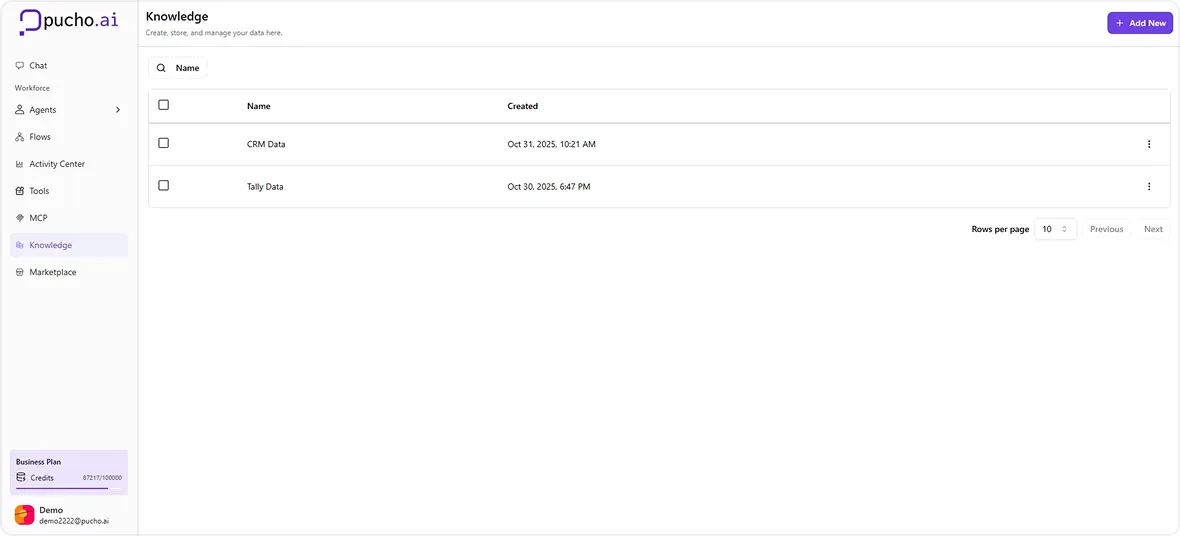
Knowledge in Pucho is the foundation of contextual understanding for your AI Agents. It’s powered by Retrieval-Augmented Generation (RAG), enabling agents and tools to access and utilize relevant business data while performing tasks.
With Knowledge, you can centralize structured and unstructured information — ensuring your agents always respond with accuracy, context, and real-time relevance.
How do I create Knowledge?
Creating Knowledge in Pucho is simple and flexible. You can:
- Manually input data: Start from scratch with an empty dataset and directly enter important business information or FAQs.
- Connect external integrations: Sync live data from third-party tools like CRMs, document systems, or databases — ensuring your agents always work with the latest information.
Marketplace
Explore 250+ AI Agents and 1000+ Pre-Built Workflows — ready to use instantly.
What is the Marketplace?
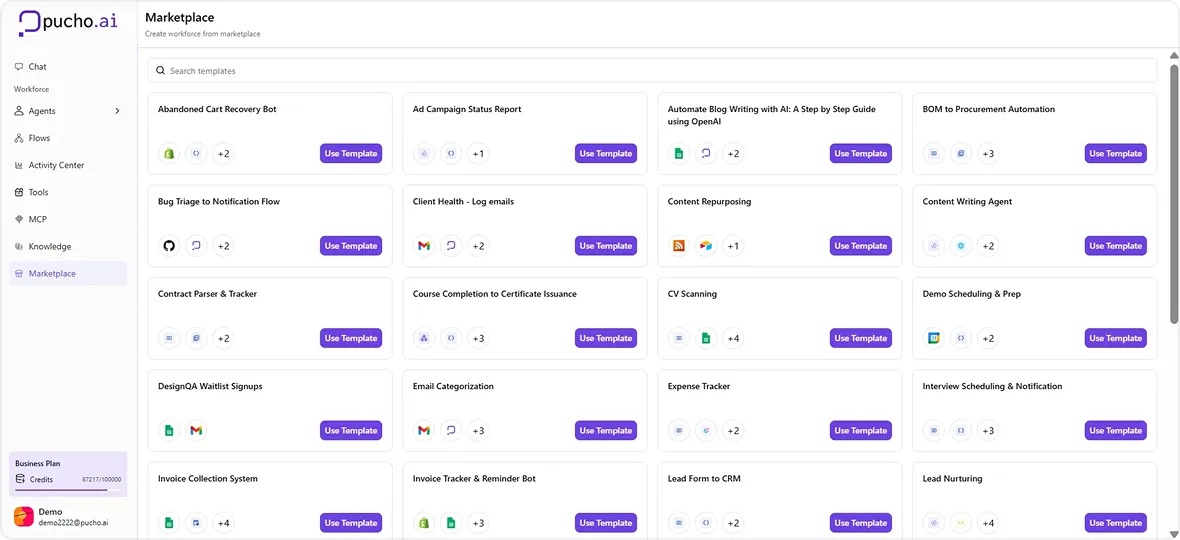
The Pucho Marketplace is your ready-to-use automation hub — a collection of pre-built Agents, Tools, and Workflows designed to help you launch faster.
Instead of building from scratch, you can explore our growing library of templates and directly incorporate them into your own workflows — all in a single click.
What you’ll find in the Marketplace:
Pre-Built AI Agents:
Discover domain-ready agents across Marketing, Sales, HR, Finance, and Operations — each pre-trained with logical decision structures and compatible toolsets, ready to adapt to your business workflows.
Ready-to-Use Workflows:
Access over 1000+ workflow templates for automation use cases like lead qualification, onboarding, invoice tracking, reporting, and more — built for real-world operations.
Curated Tool Templates:
Leverage pre-configured tools that perform actions like sending emails, generating reports, fetching data, or scheduling tasks — ready to plug into your existing automations.
Integration Blueprints:
Learn from sample configurations showing how Pucho connects seamlessly with your favorite apps — including Google Workspace, Notion, ClickUp, Slack, and other third-party systems.
How it works:
- Browse Templates: Explore templates by category, function, or
integration type. - Preview the Logic: Review each template’s flow steps and structure before applying it.
- Click “Use Template”: With one click, the selected template is instantly incorporated into your workspace.
- Customize & Run: Modify any steps, connect your tools or agents, and run it — your automation is ready within seconds.
Example Use Cases:
- Marketing Agent Starter Kit: Deploy a campaign automation that generates ad copy, posts it on social media, and analyzes performance.
- Invoice Reminder Flow: Fetch pending invoices from your accounting tool and auto-send polite reminders weekly.
- Lead to CRM Sync: Capture new leads, qualify them using an AI agent, and sync directly to your CRM in real time.
- Employee Onboarding: Trigger welcome emails, system access, and HR sheet updates instantly when a new employee is added.
Why use the Marketplace:
- Instantly deploy automations — no setup needed
- Learn proven workflow logic from expert-built templates
- Connect your agents and tools faster than ever
- Scale your automation library with ready solutions
Understanding Credits
Know how Pucho Credits work and how they power your automations.
What are Credits?
Credits are the core usage unit in Pucho — they represent the computational cost of running AI-powered actions, flows, or agents.
Every time you use an AI model, run a flow, or trigger an agent that interacts with an external system, it consumes a specific number of credits.
Credits make it simple to measure, manage, and scale your automation activity across teams and organizations.
Where Credits Are Used:
Agent Tasks:
Every time an AI Agent generates a response, performs reasoning, or executes a decision chain, it consumes credits proportional to the model’s complexity.
Flow Runs:
Running a flow that includes AI or external API calls uses credits. Basic logic or data operations may have minimal or no credit usage.
LLM-Powered Steps:
Any step involving large language models (like prompt completion, text generation, summarization, or classification) consumes credits based on processing time and token size.
Tool Integrations:
Tools that call third-party APIs (for example, OpenAI, Gemini, or ElevenLabs) also consume credits to account for those external resources.
How Credits Work:
- Allocated per Plan: Each workspace, organization, or partner account receives a set number of credits based on their subscription tier.
- Shared Across Members: Credits are shared within an organization or project. Admins can monitor and allocate usage across team members.
- Real-Time Deduction: Credits are deducted in real time when a flow or agent runs, so users can instantly track their consumption.
- Usage Transparency: The dashboard provides detailed analytics — including which flow, agent, or tool consumed how many credits — ensuring full visibility.
- Top-Ups Available: You can easily purchase additional credits from your billing panel without changing your plan.
Example Scenarios:
Running an Agent:
A Sales AI Agent analyzes a new lead, drafts an email, and updates the CRM — consuming 6 credits for the entire interaction.
Executing a Flow:
A Flow that summarizes a report using GPT, sends it via Gmail, and logs it in Notion may consume 4–5 credits depending on the token usage and steps.
Daily Automation:
If your HR automation sends 100 AI-personalized welcome emails weekly, it may use 300–400 credits/month depending on model size.
Managing Credits Effectively:
Optimize Steps:
Use smaller LLM models for lighter tasks or add caching layers for repetitive prompts to save credits.
Set Alerts:
Configure credit alerts for your organization to avoid unexpected usage spikes.
Scale Intelligently:
As your automation ecosystem grows, upgrade plans or purchase top-ups to ensure uninterrupted workflow execution.